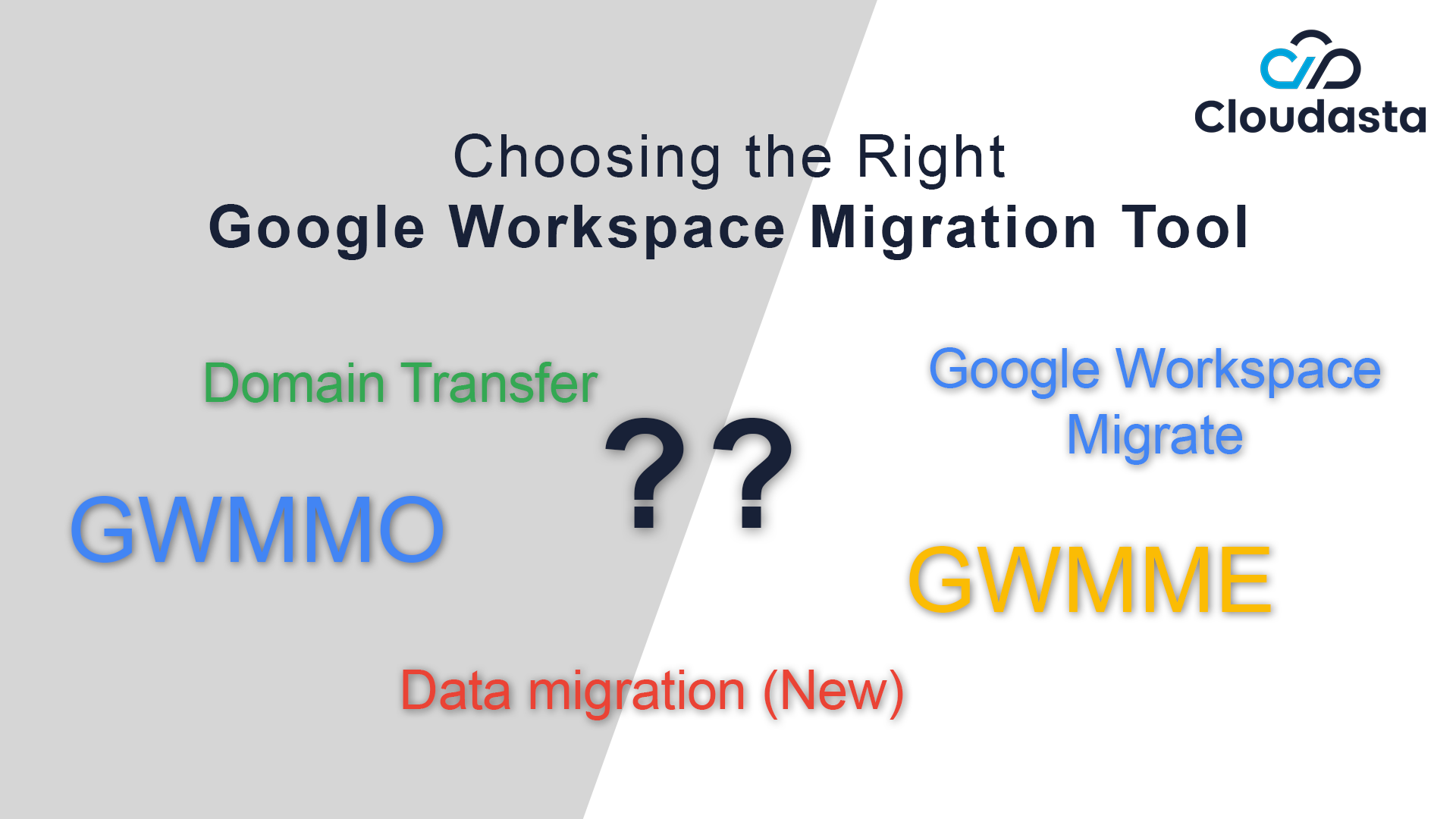
Google Data Migration: How to Migrate from Your Current Provider to Google Workspace Seamlessly
In today's fast-paced digital world, moving your organization's data to a new platform can seem daunting. This comprehensive guide simplifies the process of Google data migration using Google-provided tools, without the need for third-party software.
Who this is for: Anyone responsible for moving data into Google Workspace—from IT admins and sysadmins to ops managers, business owners/CEOs, and non-technical project leads. If you have (or can be granted) the right Admin console permissions, this guide shows you how to complete a Google data migration using Google’s own tools; without third-party software.
What you’ll get: Exactly which Google tools to use in each scenario, what each one migrates vs. doesn’t, limits you must plan for, and a clean cutover checklist. Each tool below links to a deeper guide in this cluster.
What is the New Google Data Migration Service?
The new data migration service is a modern, cloud-based solution that allows you to set up and manage your data migration directly from the Google Admin Console. Because the entire process takes place in the cloud, it simplifies setup and management significantly. This service is specifically designed to help administrators move their users' digital assets into the Google Workspace environment from a variety of sources. All eligible data is copied, not moved or deleted, ensuring your source data remains intact and accessible.
What You Can Migrate: A Breakdown by Data Source
A key weakness of many migration guides is mixing details from different processes. For example, a "flagged" message from Microsoft Exchange becomes a "starred" message in Gmail, but this is not true for a migration from an IMAP server. To provide clarity, it's crucial to break down the migration capabilities based on the original source account, just as Google does in the Admin console.
1. Migrating from Google
Google Workspace migration tool and Gmail migration tool.
When migrating from another Google Workspace account or a personal Gmail account using the Admin console's tool, the process is straightforward but has important limitations.
- What's Migrated: The native tool primarily focuses on migrating email messages only. It will copy a user's emails, labels (which are retained), and read/unread status from the source account to the new one.
- What’s Not Migrated: These tools do not migrate Google Drive files, Google Calendar events, or Google Contacts. Attachments larger than 25 MB are not migrated.
2. Migrating from Microsoft
Google has heavily focused on creating robust tools to help users transition from the Microsoft ecosystem. This is the most comprehensive migration path available in the new service.
- Microsoft Exchange Online:
- Email: Migrates emails, folder structures (as labels), and message state (read/unread).
- Calendar: Migrates default and additional calendars, events, reminders, and meeting rooms.
- Contacts: Now fully integrated. Personal contacts and most data fields (name, email, phone, addresses) are migrated directly within this tool. You no longer need the classic tool for this.
- Microsoft OneDrive: You can copy files and related data directly from users' OneDrive business accounts to their Google Workspace My Drive.
- Microsoft SharePoint Online: Files can be migrated from SharePoint Online to Google Shared Drives. OneNote notebooks are migrated as folders in Shared Drives.
- Microsoft Teams: You can migrate messages from Microsoft Teams directly into Google Chat, helping to preserve conversation history. Note that this tool migrates only chat messages from channels in Microsoft Teams, it doesn't migrate one-on-one chat messages or group messages where a single user chats with multiple users.
For any other email provider that supports the IMAP protocol (e.g., GoDaddy, Zoho, etc.), Google provides a migration path.
- What's Migrated: The IMAP migration tool is designed to copy email messages only. It will migrate email folders as distinct labels in Gmail.
- What’s Not Migrated: This process does not migrate calendars or contacts.
- Alternative for Other Data: To migrate calendars and contacts from these providers, you will likely need to perform a manual export/import process or use specialized third-party migration software.
- Files and Folders: You can now migrate files, folders, and associated permissions from a Dropbox business account directly to your organization’s Workspace accounts.
- What's Included: Personal folders migrate to My Drive, while Team folders migrate to Shared drives. It preserves file formats and basic folder hierarchies.
- What's Not Included: Dropbox Paper files and previous versions of files (only the latest version is copied).
Key Advantages and Features
- Cloud-Based Process: The entire migration process takes place in the cloud, simplifying setup and management.
- Data Preservation: All eligible data is copied, not moved or deleted, ensuring your original source mailbox and its data remain accessible after a migration.
- No Duplication: If you need to rerun a migration, the service intelligently checks for and skips messages or calendar events that have already been migrated, preventing duplicates.
- Security Compatibility: You generally do not need to turn off 2-Step Verification or allow access to less secure apps for the target Google Workspace account during migration. For multiple users from a Google Workspace source with SSO/2-Step Verification, creating App Passwords is the recommended approach.
Understanding and Monitoring the Migration Process
This section is specific to using the tools within the Google Admin Console. After setting up a connection to your source account and starting a migration, you can monitor its progress directly in the Admin console.
Progress Tracking: You can see real-time statistics in the status bar in the Migrations table, including the number of items successfully migrated and items that failed. A migration is finished when "Complete" appears next to “Migration Status Report”.
Important Considerations for a Smooth Migration
While powerful, the new data migration service has some important considerations:
- User Volume: The service works best when migrating a group of 100 users or fewer. Though you can migrate up to 1,000 for some tools, migrating more users at once might lead to a drop in performance.
- Simultaneous Migrations: You cannot migrate from multiple source accounts to a single target user account at the same time. Attempting to do so will cancel the first migration, and only data from the second source will be transferred.
- Migration Duration: The time a migration takes depends on factors such as the number of users, the chosen migration start date (a longer timeframe equals longer migration), and the number and size of items. Source server performance, network transfer rate, and latency also play a role when migrating from non-Google accounts.
- Unchangeable Settings: Once a migration has started, you cannot change the migration settings, including the start date. To edit settings, you must first cancel the migration.
- RFC-Compliant Emails: Messages must be RFC-compliant to be migrated successfully. Common issues include empty or malformed "From" fields, 2-digit years in the "Date" field, or incorrect time formats.
- Complex Migrations: If your migration is complex or requires detailed logs, the data migration service might not be the most suitable tool. You might want to compare other Google Workspace migration products or contact a Google Workspace Migration Expert like Cloudasta.
Troubleshooting and FAQs
Here are the most common blocks you might encounter in your migration.
- Stalled Progress Bar: A stalled status bar (e.g., 0% or 99%) doesn't always mean the migration is stuck. It might be processing existing emails, applying labels, or have more successfully migrated items than initially discovered. Monitoring the "Items successfully migrated" or "Items that failed to migrate" numbers can confirm progress.
- Wrong Message Dates: Migrated messages might show the migration time and date if the original message's date header wasn't RFC 5322 compliant.
- Discrepancy in Item Counts: If "Total items discovered" is greater than "Items migrated," it could be due to Gmail's conversation view, de-duplication of messages assigned to multiple folders in Exchange/IMAP, or applied exclusions. Messages larger than 25 MB or those with blocked attachments will also not migrate.
- Rollback: There is no option to reverse or roll back a completed migration.
The new Google data migration service provides a powerful and convenient way to transition your organization to Google Workspace. By understanding its capabilities and limitations, you can plan and execute a successful migration strategy.
Need Help with Google Data Migration? Talk to Cloudasta.
If you're planning a data migration to Google Workspace, having the right partner makes all the difference. Cloudasta specializes in Google Workspace migrations for businesses of all sizes, whether you're moving 10 users or 10,000. From planning to execution and post-migration support, our team ensures zero data loss, minimal downtime, and a hassle-free experience.
Contact Cloudasta today to get expert help with your Google data migration and unlock the full potential of Google Workspace.